

FTP
(WS_FTP Tutorial) 
WS_FTP Overview
WS_FTP allows you to easily transfer your web page files from your computer to your web space on our servers.
Contents:How to set up WS_FTP
Short explanation of the folders for your account
Uploading files
Changing permissions on files and folders
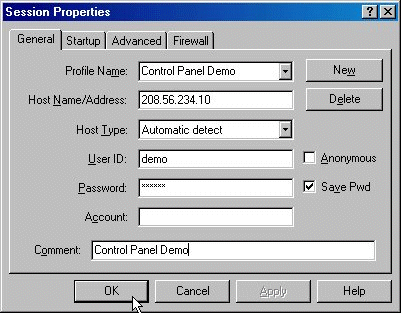
Create a connection entry for your site with the information you received in your welcome letter. If you no longer have the welcome letter, the required information for your account (except your password) can be viewed on your control panel in the upper left. You can create the entry using the IP address for your site, as shown below, or by using ftp.yourdomain.com if your domain name is active on our system. Type in the appropriate username and password for your account. Note that you can save your password by checking the "Save Pwd" box - remember to change your password here if you change your password via your control panel!
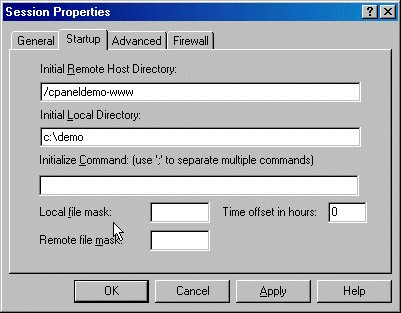
Once you've entered that information, click the Startup tab. You can set the directory where the program will start by default by entering that path in the "Initial Remote Host Directory". Generally, you will want to set this to the main folder for your site, which is /yourdomainname-www, as shown below. You can also set the directory where your files are located on your pc by specifying that directory in the "Initial Local Directory" field, again, as shown below. Please note that the slash direction is important when entering these paths.
A short explanation of the folders for your account:
When you FTP to your account, or when you view a list of files and folders from the File Manager on the control panel, you will see certain system-created folders for your use. These folders should not be deleted when maintaining your account: domainname-www, www, domainname-logs, domainname-secure, domainname-mail, and cgi-bin. In addition, if you install FrontPage extensions on your account, the _vti* folders should be added to the list. Deleting these folders could leave your site inaccessible until support can restore them or recreate them.
Uploading files with WS_FTP is easy. From the left hand pane (your computer), select the file you wish to upload. To select multiple files for upload, hold down the CTRL key on your keyboard and click on each file you wish to send. Once you have selected the files you wish to upload, click the arrow that is pointing to your web space, as shown below.
Important! While many times, the upload method you choose will not affect the appearance of those files, for some files, the file type is very important. The example above shows that the index.html file, selected on the left, will be uploaded as an ASCII (or plain text) file. Image files (.gif, .jpg, etc.) should be uploaded as Binary only. If images are uploaded in ASCII format, they may appear distrorted - or they may not appear at all - when your page is viewed. When uploading CGI scripts in particular, it is imperative that the instructions for that script are followed exactly. Failure to upload in the manner directed by the instructions can result in your CGI scripts not functioning properly.
Changing permissions on files and folders:You may find that you need to change the permissions on a folder or a series of files. Many CGI scripts require certain settings for the files that the script uses - for instance, the instructions may direct you to "chmod 755" a file, or "change permissions to 755". WS_FTP makes setting permissions easy.
Right click on the file or folder whose permissions you wish to change, and select chmod (UNIX). The following dialog box will then appear:
The numbers indicated after a chmod command refer to values that are assigned to the owner, group, and others. Each number represents the sum of the values assigned to Read, Write, and Execute:
Read - 4
Write - 2
Execute - 1
Adding the numbers for each column above gives you the setting. In our example, the Owner is granted a permission of 7 (4+2+1), and both the group and others are given a permission of 5 (4+1). After clicking OK, the appropriate permissions will be assigned to the file. In our example, the file index.html has been given a permission of 755.
To download WS_FTP (Pro or LE), for more information, or for extensive support documentation on WS_FTP, please visit http://www.ipswitch.com. WS_FTP LE support and documentation can be found at http://www.ipswitch.com/support/ws_ftp_le_support.html.