


Mailing
List Tutorial

The Mailing List option, once installed, allows you to create and manage your own mailing lists, which is an efficient way of communicating with many people at one time.
Contents:
Installing
Mailing List
How to Install Mailing List
Creating a Mailing List
How to Create a Mailing List
Managing a Mailing List
How to Manage a Mailing List
How to Manage a Mailing List - Mailing List Manager
How to Manage a Mailing List - Administer the Mailing List
How to Manage a Mailing List - Subscribing, Unsubscribing
and Sending Email to the List
How to Manage a Mailing List - Deletion
Uninstalling Mailing List
How to remove the Mailing List Program
You create and manage your mailing lists using the Mail Manager option in your control panel. But you first need to install Mailing List on your site. You do this by using the Mailing List option in your control panel.
From your Control Panel, select the Mailing List option. The Mailing List Manager displays.

Select the Install Mailing List button. A message appears indicating
your mailing list will be set up in approximately ten minutes.
Back to the top
Once the Mailing List program is installed, use the Mail Manager option to create your mailing lists.
From the Control Panel, select the Mail Manager Option. The Mail Manager opens, this time with the Mailing List links displayed.

Select the New List link. The Create a New Mailing List screen displays.
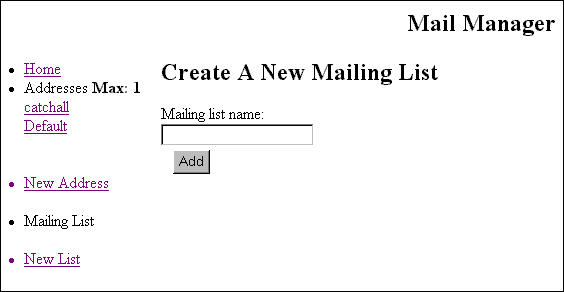
In the Mailing List Name, type the name of your mailing list then click on the Add button. A new screen displays, indicating the list is created with instructions for subscribing to and unsubscribing from the mailing list.
Select the Home link. This opens the main Mail Manager page and refreshes the display so that the mailing list you just created appears on the left.
Once
a Mailing List is created, you need to set that list up within Mail
Manager. The setup of a mailing list determines what kind of function
it will serve, who will manage the list and specific information about
the appearance of the list.
Back to the top
From Mail Manager, under the Mailing List section, the name of your newly created list appears. Select the list by single-clicking on it. The Edit Mailing List page for the selected list displays.
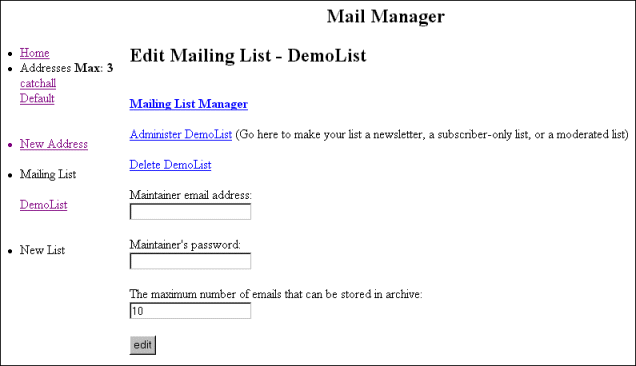
There are several different options for editing the mailing list. Each will be covered separately in the following procedures. The remainder of this procedure will discuss the screen displayed above.
Enter the e-mail address of the person be in charge of maintaining the list in the Maintainer's email address field.
Enter a password for that person in the Maintainer's password field.
In the remaining field, enter the maximum number of messages allowed
to be stored in the archive of the mailing list.
Back to the top
How To Manage a Mailing List-Mailing List Manager:
From the Edit Mailing List page, select the Mailing List Manager link.
A page titled X Command displays, and the name of the mailing list you are editing appears near the top of the screen.
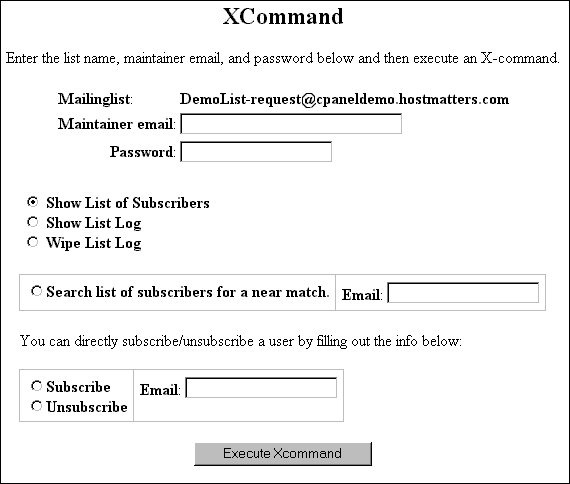
Many of the fields on this screen are actually commands that you can perform on your mailing list. You simply select the command you would like to use, fill in the appropriate information and then select the Execute Xcommand button to make the change occur.
If you have not already set up the Maintainer e-mail and password on the Edit Mailing List page, enter that information in the appropriate fields on this page.
If you would like to have either the list of subscribers or the list
log e-mailed to you (as the maintainer), enter the e-mail address in
the Maintainer e-mail field and the maintainer password in the
password field, then select either Show List of Subscribers or Show
List Log. If you would like to clear out the list log, complete
the Maintainer e-mail and password fields and select the Wipe List
Log. Once your selections have been made, select the Execute
Xcommand button to perform the action. An e-mail message will be
sent to the e-mail address entered in the Maintainer e-mail field including
the results of the action you selected.
Back to the top
To look up a specific e-mail address in the list of your mailing list subscribers, click on the Select list of subscribers for a near match option, enter the address for which you are searching, and select the Execute Xcommand button to perform the search. Results will be e-mailed to the address in the Maintainer e-mail field.
If you would like to directly subscribe or unsubscribe a user from the mailing list (rather than having the user do it), select either the Subscribe or Unsubscribe option, enter the desired user's e-mail address in the e-mail field and select the Execute Xcommand button. A confirmation message will be sent to the address listed in the Maintainer e-mail field.
How To Manage a Mailing List-Administer the Mailing List:
From the Edit Mailing List page, select the Administer mailinglist link.
A
page titled Administer Mailing list - mailinglistname displays.
Back to the top
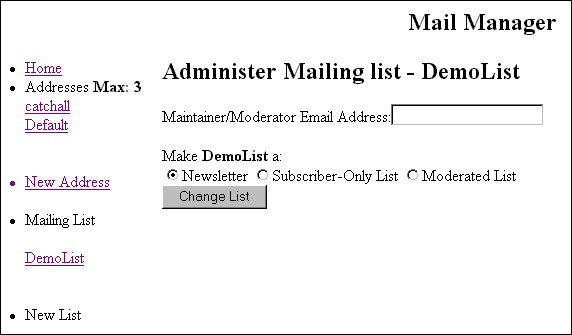
Enter the maintainer's e-mail address in the Maintainer/Moderator Email Address field.
Select the option that accurately describes the purpose of your list. The choices are:
Newsletter: A Mailing List created as a Newsletter will only be usable by you as the moderator. Others will not be able to send mail to be distributed by the list. It is a good way to distribute one message to many of your mailing list subscribers.
Subscriber-Only List: Only people who deliberately subscribe to the mailing list can send mail to or receive mail from the list.
Moderated List: The mail from the list is screened and if appropriate edited or deleted before being allowed to be sent to all subscribers to the list.
For both Newsletters and Moderated Lists, the list maintainer must put in as the first line of an email message to the list an approved line as follows:
Approved: listmainteremail@yourdomain.com
Select the Change List button. The following message displays.

How to Manage a Mailing List - Subscribing, Unsubscribing and Sending Email to the List
To
subscribe to the mailinglist, simply send a message with the word 'subscribe'
in the Subject: field to the -request address of that list
To: listname-request@technogirl.net
Subject: subscribe
To
subscribe to the digest, simply send a message with the word 'subscribe'
in the Subject: field to the following address.
To: listname-d-request@yourdomain.com
Subject: subscribe
To send email to the mailinglist, write to the following address:
To: listname@yourdomain.com
To
unsubscribe from the mailinglist, simply send a message with the word
'unsubscribe' in the Subject: field to the -request address of that
list
To: listname-request@yourdomain.com
Subject: unsubscribe
To
unsubscribe from the digest, write a email like this:
To: listname-d-request@yourdomain.com
Subject: unsubscribe
How To Manage a Mailing List-Deletion:
1. From the Edit Mailing List page, select the Delete Mailinglist link.
1. Select the Delete button.
2. A message will display indicating that the mailing list was deleted.
The Mailing List option can be removed from your site if you so wish.
How To Remove the Mailing List Program:
1. From the Control Panel, select the Mailing List option. The Mailing List Manager displays indicating the Mailing List program is installed on your account.
2. To uninstall the mailing list program, select the Remove Mailing List button. A message displays indicating the program will be removed within approximately ten minutes.