

Counters
Tutorial

Counter Overview
The Counter option allows you to set up a hit counter on your site, which lets you determine how many times the page on which the counter resides has been visited. This counter is displayed on the page and can be viewed in various counter styles. Additionally, you can start the counter at any number you set, and it will count hits and add them to that number.
Contents:
How To Verify the Counter has been Installed on Your Site
Setting Up the Counter
Adjusting Your Counter
Verify Counter Installation
Before performing any work with the counter on your site, first verify that it has been installed.How To Verify the Counter has been Installed on Your Site:
From your Control Panel (yourdomain.com/menu), select the Counter icon.
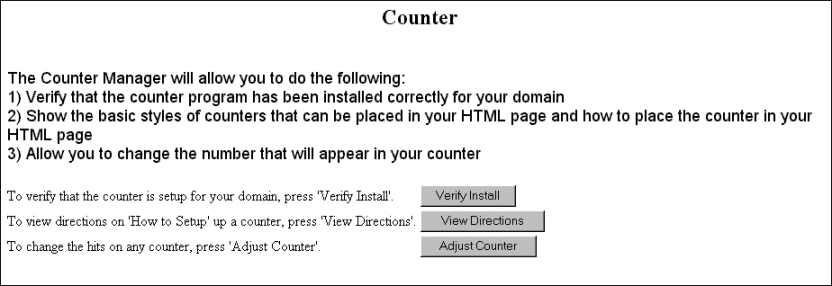
The Counter Manager displays.
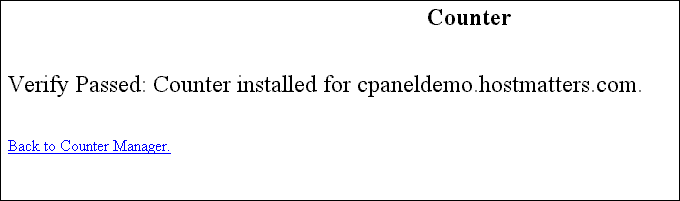
Select the Verify Install button. A message appears indicating that the counter utility has been installed for your domain.
Instructions for setting up the counter on your site are available from the Counter Manager. To actually set up the counter on your site, follow the directions that are provided from the Control Panel.
How To View Counter Setup Directions
From the Control Panel, select the Counter icon. The Counter Manager displays.
Select the View Directions button. The Counter Setup Directions display.
The complete directions are not shown in this section. However, the following is a list of topics covered by the setup directions: How do I set up a counter? How do I change the appearance of my counter? Change the digit style. Change the border of the counter. What if I want to use more than one counter? Additionally, you can find complete documentation maintained by the author of the Counter program at http://www.muquit.com/Count_FAQ.html.
Once your counter is installed and set up, you can adjust the number that is displayed in your counter to any number you set.
Warning: · You cannot adjust your counter if it has not been installed and properly set up.
From the Control Panel, select the Counter icon. The Counter Manager displays.
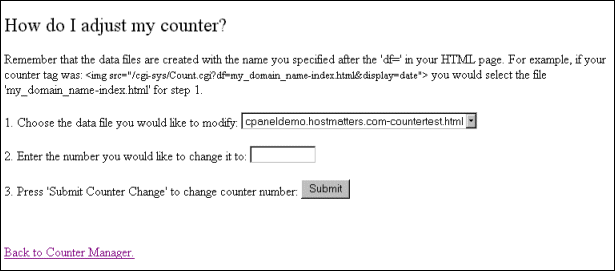
Select the Adjust Counter button. The How Do I Adjust My Counter page displays.
This page offers step-by-step instructions for adjusting the counter display number.
From the drop-down list in field 1, select the file which contains the counter you would like to change. In field 2, type the number that you would like your counter to show.
Note: The next time you view your the counter on your page, it will be one digit higher than what you specify here. For instance, if you choose 1000, when you return to the counter page, the counter will read 1001. 1.
Select the Submit button to continue. A page displays indicating that the counter adjustment was successful.
You can now return to the page on which the counter resides to view the adjustment. As indicated on the screen above, if you are using Netscape, you need to hold down your shift key and simultaneously click on the Reload button for the change to take place.